This article shows you how to connect an AI client to the HexaSync MCP Server of your Lightspeed Retail (X-Series) store. After connecting, you can ask the AI client about the store’s products, sales and inventory in plain language. Access is read-only: the AI client cannot change anything in Lightspeed Retail.
The steps below are for Claude. HexaSync shows the same kind of steps for Claude Code, Codex CLI and other AI clients on the MCP Server page of your connector.
Before you start
- A Lightspeed Retail (X-Series) Connector App in HexaSync. If you have not connected your store yet, follow the Lightspeed Retail (X-Series) connection guide first.
- A Beehexa Account that can open that connector in HexaSync. You sign in with it when the AI client connects.
- A Claude account. The steps work in Claude on the web and in Claude Desktop.
- On Claude Team and Enterprise plans: an owner must add the connector to the organization before members can connect.
Part 1: Open the MCP Server page in HexaSync
Step 1: Open your Lightspeed Retail connector
Sign in to HexaSync, open Connectors, then select your Lightspeed Retail (X-Series) Connector.
Step 2: Select MCP Server
In the connector’s menu on the left, select MCP Server. The page names the store the server reads from, under Lightspeed Retail (X-Series) store, and shows a tab for each AI client: Claude, Claude Code, Codex CLI and Other AI client.
Check the store name before you continue, then keep this page open: you copy three values from it in Part 2.
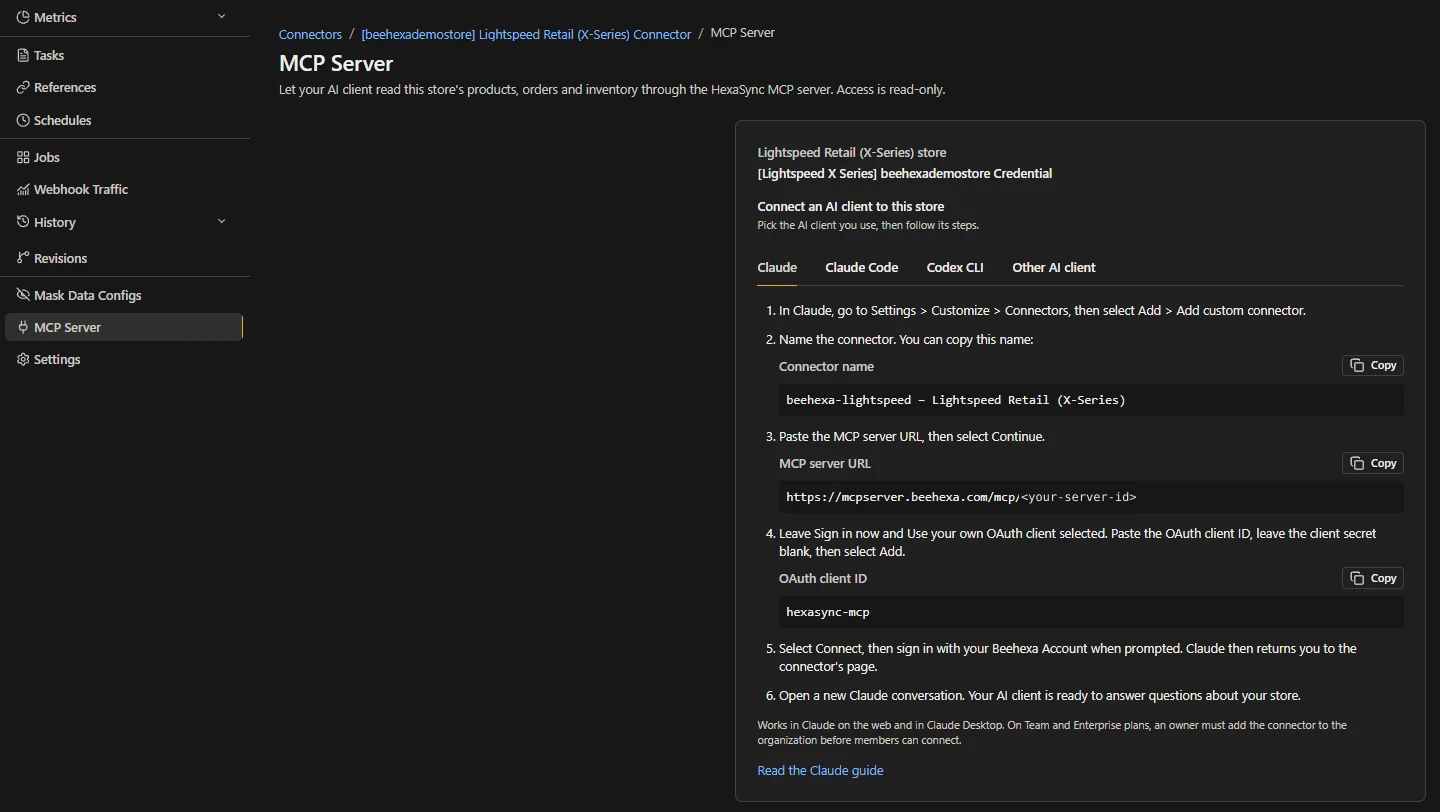
| Value | What it is | Example |
|---|---|---|
| Connector name | A suggested name for the connector in Claude. You can use another name. | beehexa-lightspeed – Lightspeed Retail (X-Series) |
| MCP server URL | The address of the MCP Server of this store. Each connector has its own. | https://mcpserver.beehexa.com/mcp/<your-server-id> |
| OAuth client ID | The client ID Claude uses to sign you in with your Beehexa Account. | hexasync-mcp |
Use the Copy button next to each value so that nothing is mistyped.
Part 2: Add the MCP Server to Claude
Step 1: Add a custom connector
In Claude, go to Settings > Customize > Connectors, then select Add > Add custom connector.
Step 2: Name the connector
Enter a name for the connector. You can copy the Connector name from the MCP Server page in HexaSync.
Step 3: Paste the MCP server URL
Copy the MCP server URL from HexaSync, paste it into Claude, then select Continue.
Step 4: Enter the OAuth client ID
Leave Sign in now and Use your own OAuth client selected. Paste the OAuth client ID hexasync-mcp, leave the client secret blank, then select Add.
Step 5: Connect and sign in
Select Connect, then sign in with your Beehexa Account when prompted. Claude then returns you to the connector’s page.
Step 6: Start a conversation
Open a new Claude conversation. Your AI client is ready to answer questions about your store.
Part 3: Check the connection
Ask a question that needs data from the store, for example:
- Which Lightspeed Retail store are you connected to?
- Which outlets do we have, and which currency and time zone does each use?
- What are the retail price and the supply price of SKU TOTE-CNV-01?
Claude asks for permission the first time it uses a tool of the connector. An answer with your store’s own outlets, products or sales means the connection works.
What the AI client can read
The Lightspeed Retail MCP Server has 6 read-only tools:
| Tool | What it returns |
|---|---|
list_connections |
Which connected Lightspeed Retail account the MCP connection works on. |
lightspeed_list_outlets |
The outlets of the store: name, currency, time zone, whether prices include tax, city, state and country. |
lightspeed_search_sales |
Sales in a date range, optionally for one outlet and one state: invoice number, totals, returns and line items. |
lightspeed_list_products |
The products and variants of the store: name, SKU, prices, brand, product type and category. |
lightspeed_get_product_details |
One product in detail: variant options, prices, barcodes, suppliers and categories. |
lightspeed_get_inventory_levels |
Stock of one product at each outlet: current quantity, reorder point and reorder amount. |
For example questions and what each tool is for, see the Lightspeed Retail MCP Server page.
Other AI clients
The MCP Server page in HexaSync has a tab for Claude Code, Codex CLI and Other AI client. Select the tab of the client you use and follow the steps it shows. Every client uses the same MCP server URL and the same OAuth client ID, and asks you to sign in with your Beehexa Account.
If the connection does not work
| What you see | What to check |
|---|---|
| Claude cannot reach the server | Copy the MCP server URL again with the Copy button. The URL must be the one on the MCP Server page of this connector. |
| Sign-in does not start, or fails | The OAuth client ID must be exactly hexasync-mcp and the client secret must be blank. |
| You cannot add the connector on a Team or Enterprise plan | An owner of the Claude organization must add the connector first. Members can connect after that. |
| Claude connects but returns no store data | Open the connector in HexaSync and check that Lightspeed Retail still shows Connected. If not, re-authorize it as the connection guide shows. |
If the problem remains, contact the HexaSync team with the name of your connector and the message Claude shows.
Frequently asked questions
Can the AI client change data in my Lightspeed Retail store?
No. Access through the HexaSync MCP Server is read-only. The AI client can read products, sales and inventory, and no tool can create, change or delete anything in Lightspeed Retail.
Do I need an OAuth client secret?
No. Paste the OAuth client ID hexasync-mcp and leave the client secret blank. You then sign in with your Beehexa Account when Claude asks you to connect.
Which AI clients can I connect?
The MCP Server page in HexaSync has steps for Claude, Claude Code, Codex CLI and other AI clients that support the Model Context Protocol (MCP). The Claude steps work in Claude on the web and in Claude Desktop.
Can the AI client see customers’ phone numbers or emails?
No. The tools of the HexaSync MCP Server do not give customers’ contact details, such as phone numbers and emails, to the AI client, even when Lightspeed Retail stores them.
Can I use the same MCP server URL for another store?
No. Each Lightspeed Retail connector in HexaSync has its own MCP Server page and its own MCP server URL. To connect another store, open that store’s connector and copy the URL shown there.