This guide helps you connect Freshdesk Omni to HexaSync to check ticket data and use Freshdesk Omni in HexaSync integration apps. The guide also applies to Freshdesk.
Before you start
- A Freshdesk Omni plan.
- The API key of a Freshdesk Omni agent. HexaSync sees the tickets this agent can see, so choose an agent who can view all the tickets you need (an Admin account is recommended).
- A Beehexa account to sign in and manage apps on HexaSync. If you do not have one yet, sign up on the same page.
Part 1: Authorize the Freshdesk Omni connection for the first time
Step 1: Sign in to HexaSync
Go to HexaSync Automation Engine and sign in with your Beehexa account.
Step 2: Start connecting Freshdesk Omni
- Open the Freshdesk Omni authentication page on HexaSync.
- On the Check connection details screen, select Connect.
Step 3: Confirm the Freshdesk Omni app
On the screen for using HexaSync’s ready-made app for Freshdesk Omni, select Continue. The next screen asks for the Freshdesk Omni API key.
Step 4: Get the API key
- Sign in to Freshdesk Omni as the agent you chose.
- Click the avatar in the top right corner and select Profile settings.
- Copy Your API Key. Do not click Reset API Key.
Security note: The API key is as sensitive as a password. Do not share it with anyone.
If the account does not show an API key yet, go to Agent Settings, select API Key Access, reload the page, then go back to Profile settings to get the API key.
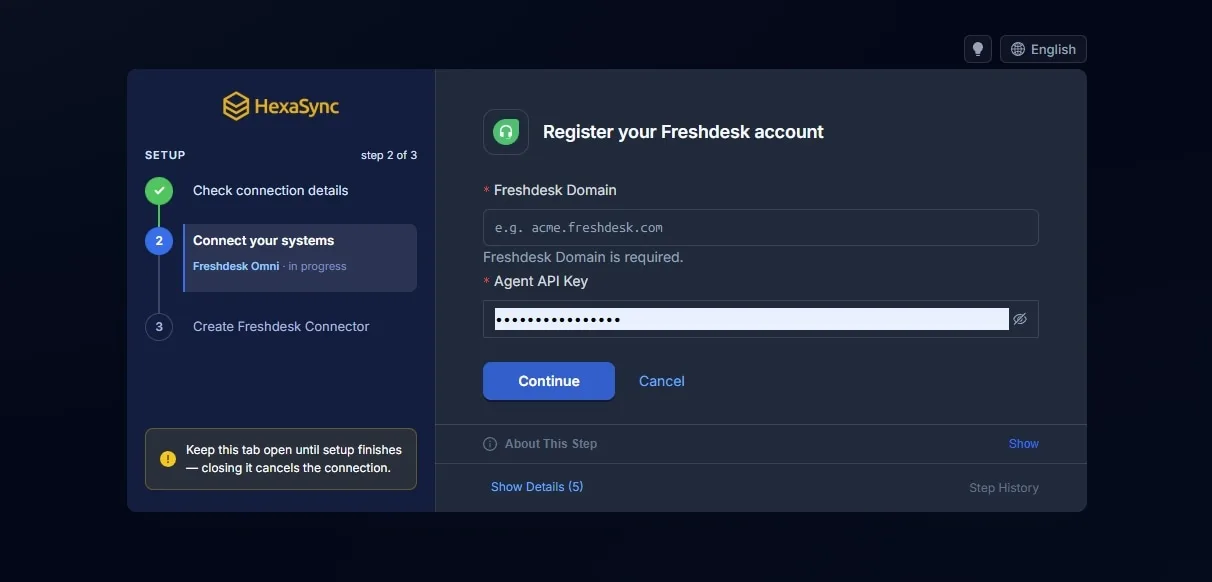
Step 5: Enter the Freshdesk Domain and Agent API Key
On the Register your Freshdesk account screen, fill in Freshdesk Domain (for example acme.freshdesk.com) and Agent API Key, then click Continue.
Step 6: Set up the automation rule in Freshdesk Omni
The next screen shows a Callback URL and an API key. You use these two values to create an automation rule in Freshdesk Omni, so that HexaSync receives ticket changes as they happen.
- Copy the Callback URL and the API key.
- In Freshdesk Omni, open Admin → Workflows → Automations and select the Ticket Updates tab. Or open
https://<domain>/a/admin/automations/ticket_updatesdirectly, replacing<domain>with your domain (for examplehttps://acme.freshdesk.com/a/admin/automations/ticket_updates). - Select New Rule and name it HexaSync Message Integration. This rule sends an event from Freshdesk Omni to HexaSync when a new Public note is added, for example to sync conversations with another app such as Zalo OA. Set it up as follows:
- When: select Note is added, with the note type Public note.
- Conditions: leave empty.
- Actions: select Trigger Webhook and fill in:
- Request type: POST
- Callback URL: paste the Callback URL you copied
- Requires authentication: turn it on, select I have API key, then paste the API key you copied into the API Key box. Do not turn on Add custom headers.
- Encoding: JSON
- Content: keep Simple and select the fields Ticket ID, Subject, Last Public Comment, Agent name, Contact Name, Contact Unique External ID.
- Click Save and check that the rule is turned on.
- Go back to HexaSync, scroll to the bottom of the screen, and click the button to continue.
Create only one rule. Each Freshdesk Omni account needs only one rule, even if you connect several times. To see the Callback URL and API key again, reconnect the same account.
Cannot see the Requires authentication option? Turn on Add custom headers and add the line
x-hexasync-webhook-secret: <API key>, with no extra spaces.
Step 7: Finish the connection
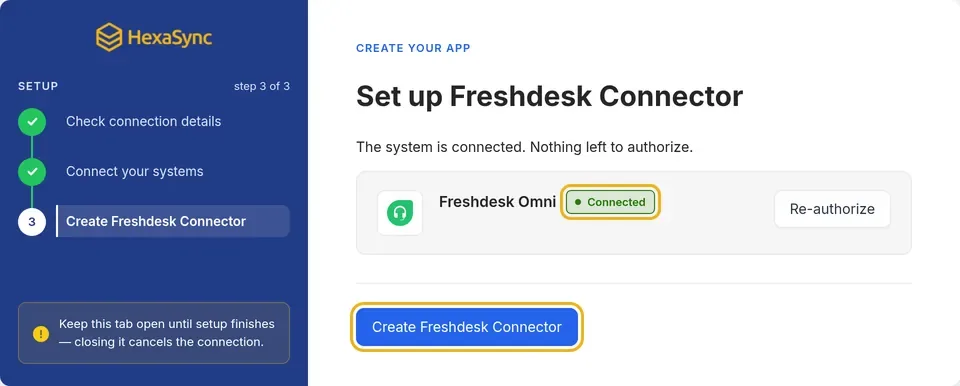
When Freshdesk Omni shows Connected, click Create Freshdesk Omni Connector.
Step 8: Check the new Connector App
- When it is done, HexaSync shows the Connection successful screen.
- Open Connector Apps to check the Connector App you just created.
After the Connector App is created, HexaSync gets data from the connected Freshdesk Omni account within 30 minutes and notifies the administrator.
Part 2: Check the connection status
Check the credential
Go to Settings and check that:
- Freshdesk Omni has the Connected status.
- The HexaSync Connector App was created successfully.
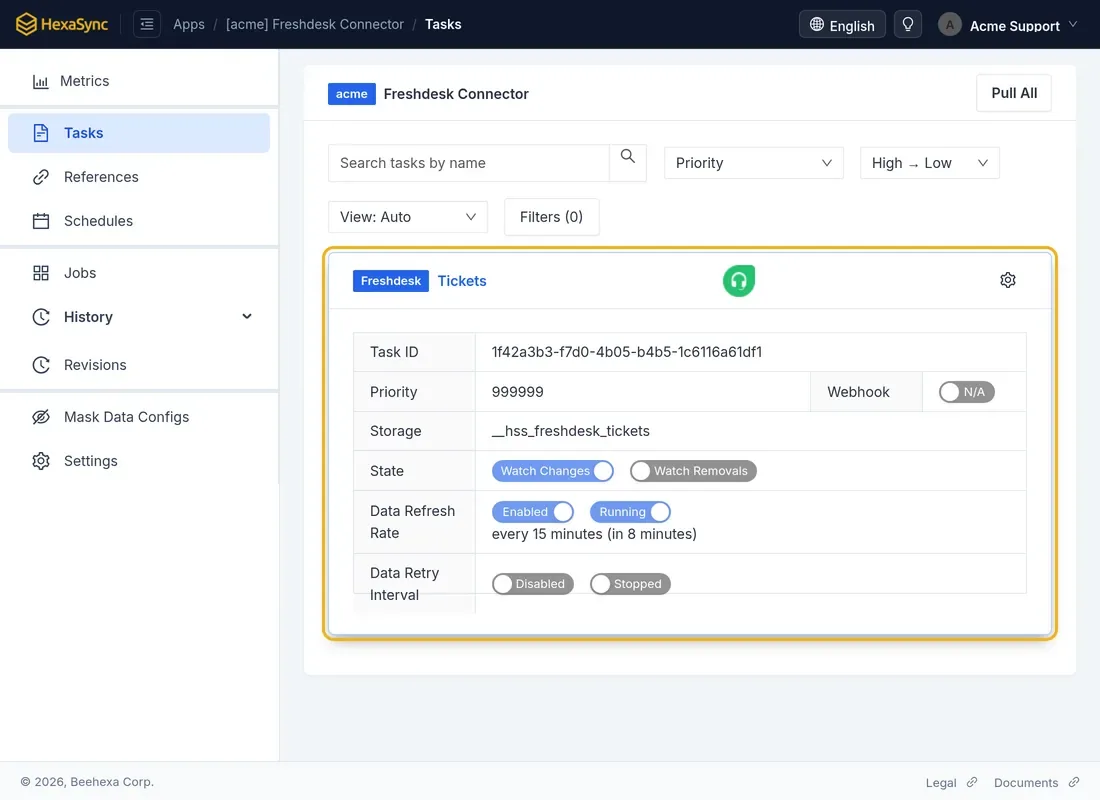
- The [Freshdesk Omni] Tickets task appears.
Check the data
- Create or update a test ticket.
- Wait for HexaSync to receive the update, then open the [Freshdesk Omni] Tickets task.
- Check the Ticket ID, Subject, Status, and so on. Expected result: the ticket appears with the matching information.
Notes about the data:
- The first time, HexaSync gets tickets updated since January 1, 2020.
- After that, the data updates automatically every 15 minutes.
- The copied information includes subject, status, priority, requester, assignee, tags, and due date.
- HexaSync only reads data and changes nothing in Freshdesk Omni.
Part 3: Re-authorize the Freshdesk Omni connection
You need to reconnect when HexaSync can no longer get new tickets from Freshdesk Omni with the current API key, for example:
- The API key was changed, or someone clicked Reset API Key in Freshdesk Omni.
- The previous agent left or had the account deactivated.
- You want HexaSync to use another agent’s API key.
Have the new API key of the Freshdesk Omni agent ready. You get it the same way as in Step 4 of Part 1.
Step 1: Open the Connector App Settings
- Open the Freshdesk Omni Connector App in Connector Apps and select Settings in the left menu.
- On the Freshdesk Omni row, click Re-authorize.
Cannot see Re-authorize? Only the person who created the app or someone with the Admin role can see this feature. Ask them to do this step.
Step 2: Confirm the app
Confirm that this is the Freshdesk Omni Connector App you want to re-authorize.
Step 3: Enter the new API key
Paste the new API key into Agent API Key, then click Continue.
Step 4: Check the automation rule
The screen shows the account’s Callback URL and API key again. These two values do not change when you reconnect.
- If you already created the automation rule, you do not need to do anything else.
- If you have not created it, follow Step 6 of Part 1.
- Scroll to the bottom of the screen and click I have saved these details — add my agent key.
Step 5: Check that the connection works
HexaSync saves the new API key to the app and takes you back to the app’s Tasks page.
- In Settings, the Freshdesk Omni row shows Connected with the new API key.
- The next update, within 15 minutes, uses the new API key.
- Tickets that were already copied stay unchanged.
Part 4: Common errors and how to fix them
| Message | How to fix it |
|---|---|
| We Couldn’t Verify Your Freshdesk Omni Account | Check the domain and API key, get the API key again, then click Edit the account details to enter the correct information. |
| We Couldn’t Store Your Freshdesk Omni Credential | The API key does not belong to this Freshdesk Omni account. Get the API key from the correct account and enter it again. |
| App Quota Reached | Contact support@beehexa.com to raise the quota. |
| HexaSync Could Not Link The Credential To Your App | The new API key was saved but is not linked to the app yet. Click Go to Manage Credentials to link the key to the app, or contact support@beehexa.com. |
For other cases, send a screenshot (with sensitive information hidden) to support@beehexa.com.
Frequently asked questions
What do I need to connect Freshdesk Omni to HexaSync?
You need a Freshdesk Omni plan, the API key of a Freshdesk Omni agent who can view all the tickets you need (an Admin account is recommended), and a Beehexa account.
What data does HexaSync get from Freshdesk Omni?
HexaSync copies ticket information: subject, status, priority, requester, assignee, tags, and due date.
Does HexaSync write or edit data in Freshdesk Omni?
No. HexaSync only reads data and changes nothing in Freshdesk Omni.
When do I need to reconnect Freshdesk Omni?
When the API key was changed or reset, the previous agent left or had the account deactivated, or you want HexaSync to use another agent’s API key.